Basic System Tools
Lesson 0
Part 1. Getting Started
Target Audience
This course is designed for people of all ages who have little or no computer coding experience. Some basic knowledge of how to use a computer is assumed, but helpful explanations and illustrations will be provided as necessary. The goal of this approach is to eliminate the need for technical support. However, if you already possess savvy computer skills, then most of this information will seem superfluous. In that case, you may want to quickly skim this section and then continue on with the other lessons. For all others, please follow along.

Hardware Requirements
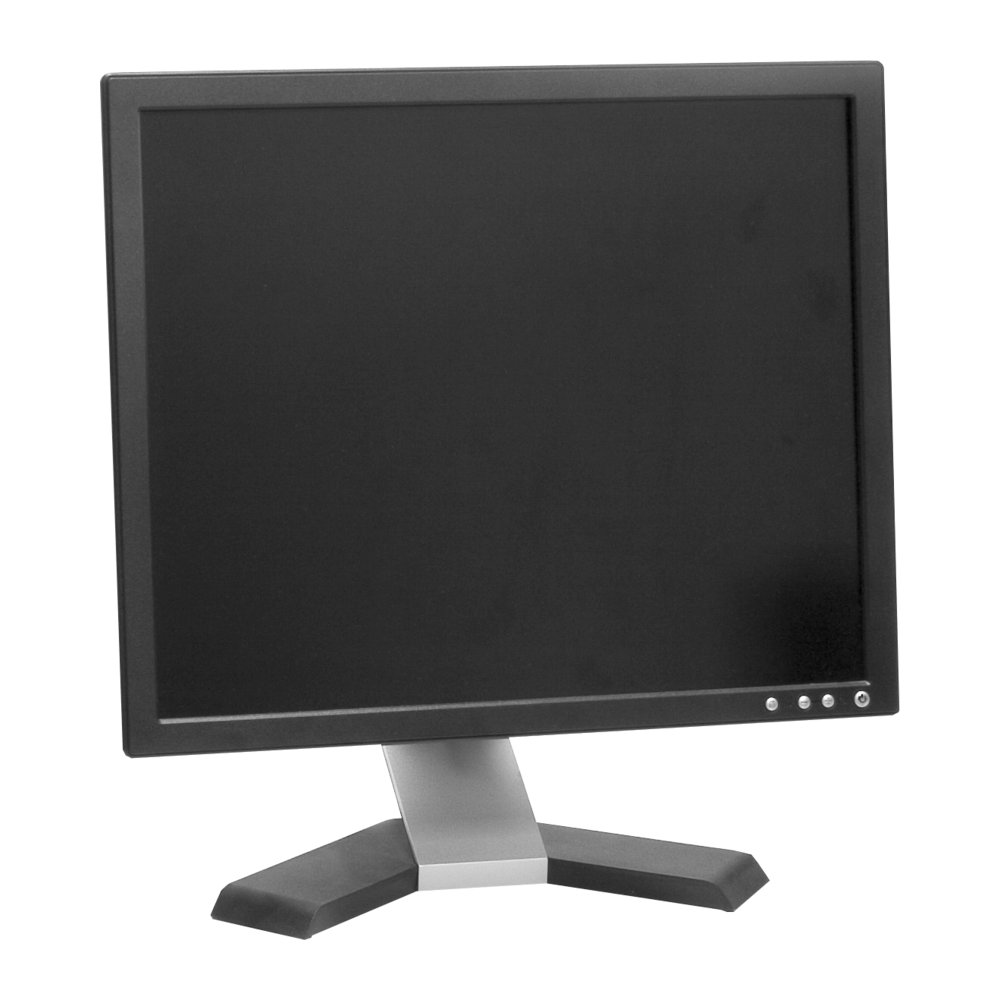
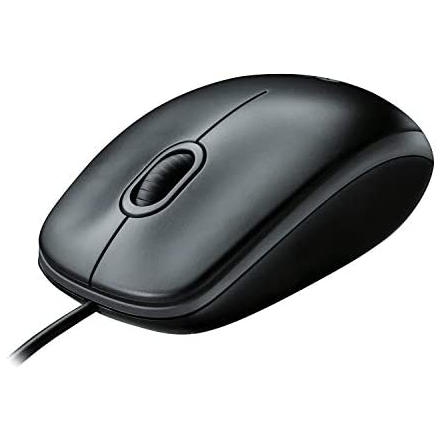
The tools you will need to get started with front-end web development and web design are easily obtained. We recommend that you use a fairly modern laptop or desktop computer running Windows, macOS, or Linux. Chromebooks are not recommended because they lack the ability to run Visual Studio Code, and they only support one web browser (Chrome), and you will want to test your code on multiple browsers and devices. Plus, Chromebooks lack the ability to store files and folders on your local computer. Similarly, we recommend that you use a computer rather than a tablet or a phone. Chromebooks, tablet computers, and smartphones are all useful tools for testing your code later to determine if it is mobile-friendly. But a larger screen is essential during development, and tablets and phones simply lack the screen real estate for the larger and wider displays. You will find that professional web developers and designers often use multiple desktop monitors with a different display on each screen. For our purposes, one desktop monitor should be sufficient, but we believe that having a screen resolution of 1920 x 1080 is highly desirable. We also believe that using a mouse is preferable to fiddling with a trackpad on a laptop computer, but that of course is a personal choice. And lastly, it probably goes without saying that you'll need a fairly reliable connection to the Internet.
Software Requirements
Some basic knowledge of how to use your computer's operating system is required, especially the file system. We will be using three folders on your computer, which we will call the 3Ds. These familiar folders are Documents, Downloads, and Desktop. When viewing files in a folder, we recommend always using the Details view, which allows you to see (and sort by) the Name of each file contained therein, the Date Modified for each file, the Type or Kind of each file, and the Size of each file. Clicking on each of these descriptors at the top of the file listing will allow you to sort by one of these categories. And it is imperative that you can view the file extension of the files in each folder.
If you are using Windows, then your folders should look something like this folder pictured below. Notice that we are looking at the Details view, and that you can see the file extension for every file listed.
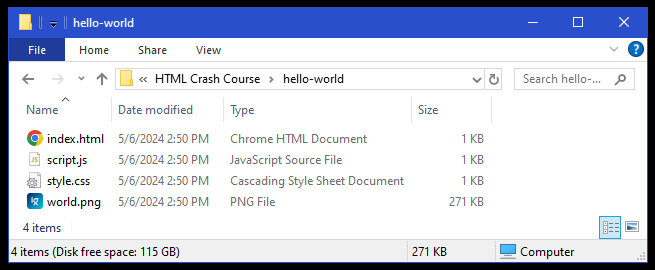
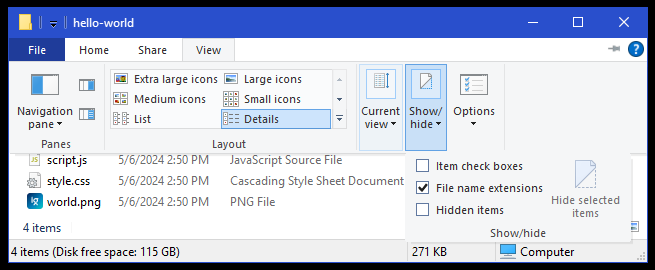
If you are using Windows, and you cannot get the Details view, or you cannot view the file extensions, then you might need to do the following. Click on View on the menu bar at the top of the folder, and then select Details (it is highlighted in blue). Also, click on Show/hide (it is also highlighted in blue), and then check the checkbox next to File name extensions. After you do that, and then close the View menu, your folder should more closely resemble the folder shown above.
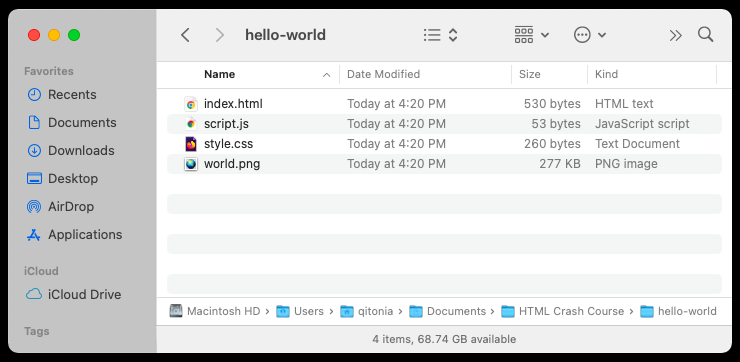
If you are using a Mac, then your folders should look something like the folder pictured below. Notice that we are looking at the Details view, and that you can see the file extension for every file listed. If you cannot get the Details view, then click on the symbol in the middle of the menu bar at the top of the folder that looks like three exclamation marks !!! turned on its side. We find that the Icons view is really only useful if you are looking at a folder of images.
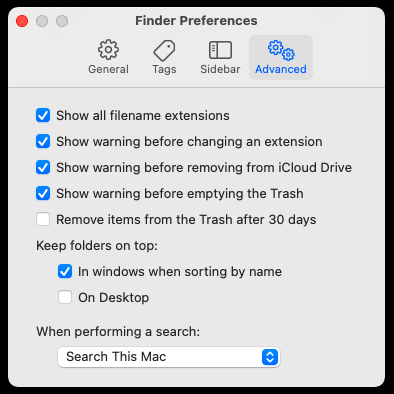
And if you cannot see the file extension for every file listed, then you need to click on Finder and then on Preferences... and on Advanced and that will produce a menu that looks something like the one below. Then, if you check the checkbox next to Show all file name extensions, you should be able to see the file extension for every file in the folder, as shown above.
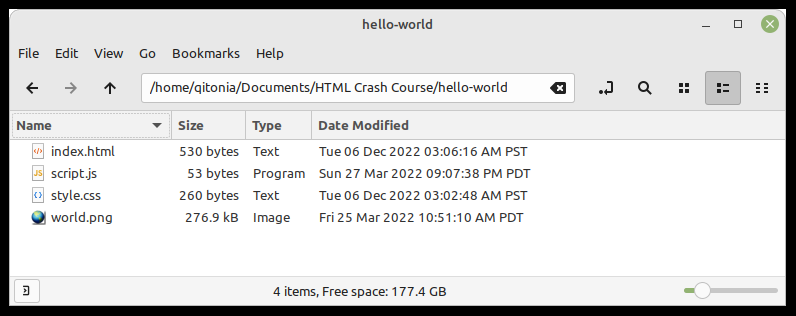
If you are using some distro of Linux, then you are probably way ahead of the rest of us. We use Linux Mint Cinnamon, and you can clearly see the Details view of the folder below. With Linux Mint, file extensions are enabled by default, as they most certainly should be.
Now that your desktop computer, or your laptop computer, and your operating system are all properly configured, it's time to install Visual Studio Code. We believe that VS Code is the best text editor available for web development. It supports many more programming languages and has more features and extensions than you will ever use. But it's the best tool for the job if you are planning to become a professional.